You write a document, export it as a PDF, and send it off. What the recipient sees is what you wrote.
What the recipient can see is a bit more than that.
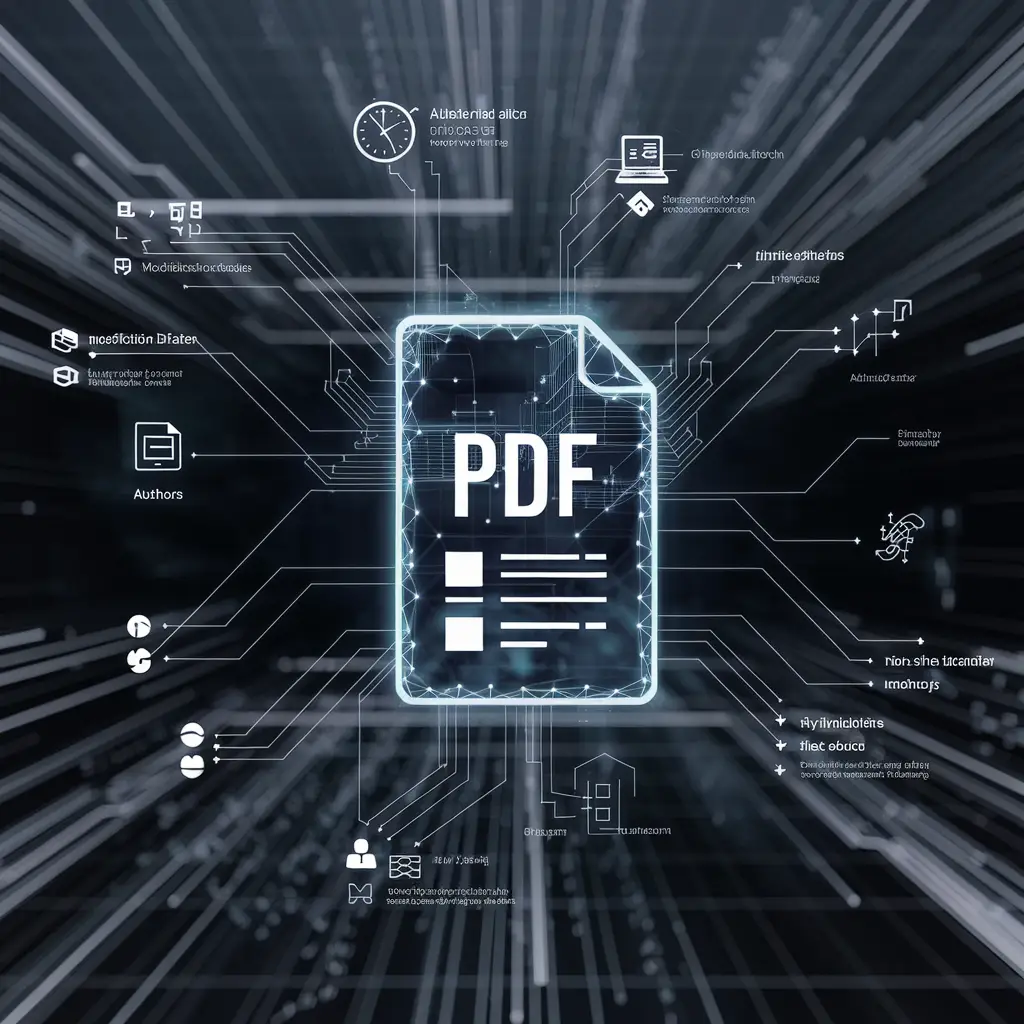
Every PDF carries a second layer of information that describes the file itself rather than its contents. It’s called metadata, it’s built into the format, and it’s populated automatically by whatever software created the document. Nobody chooses to add it. Most people don’t know it’s there.
What’s actually in there
Open the document properties in any PDF reader and you’ll typically find:
- Author — usually taken from the account name on the computer that made it
- Title, subject, keywords — often inherited from a template
- Creation and modification dates, sometimes to the second
- Producer and creator — the exact software and version used
Beyond the properties dialog, a PDF can also carry the original filename and folder path, remnants of tracked changes or comments from the source document, and details of the operating system it was produced on.
Most of the time this is entirely unremarkable. Occasionally it’s the most interesting part of the file.
Four ways this goes wrong
The template gives away the source. You win a tender by adapting a document a colleague made from a proposal originally written at a previous employer. The author field still carries a name from three companies ago. This is the most common one by a distance, because templates travel and metadata travels with them.
Dates contradict the story. A report presented as freshly prepared shows a creation date from eighteen months earlier. A submission “sent on Friday” was created on Sunday evening. Nobody usually goes looking — but in a dispute, this is exactly where people look first.
File paths describe your organisation. A path like D:\Projects\Client_Acquisitions\NDA_ProjectFalcon\ tells a reader about a project name, a client relationship and how you organise work. It costs nothing to leak and can’t be taken back.
Anonymity fails quietly. Whistleblowing, anonymous feedback, blind peer review, a job application to a company where you’d rather not advertise your current employer — in each case the author field can undo the intention entirely, and the sender has no idea.
Why it’s there at all
It would be easy to read all this as sloppiness. It isn’t — metadata does real work, and knowing what it’s for helps you decide what to remove.
Search is the main one. When your computer finds a document by author or date without opening it, that’s metadata. Document management systems in law firms and hospitals rely on it entirely: filing, retention schedules and audit trails are all built on fields nobody ever looks at directly.
It also matters for accessibility. Language tags tell screen readers how to pronounce the text. Title fields give assistive software something meaningful to announce instead of a filename. Strip a published document down to nothing and you can make it noticeably worse for people using a screen reader.
So the goal isn’t zero metadata everywhere. It’s knowing which documents are going somewhere the information doesn’t belong.

The one that catches professionals out
There’s a particular version of this that’s worth its own warning, because the people it affects are exactly the people who should know better.
When you export a PDF from Word, InDesign or a similar program, the export can carry across more than the finished text. Depending on the settings, comments, tracked changes and even earlier revisions of edited passages can survive into the PDF — invisible on the page, present in the file.
The scenario writes itself. A contract goes back and forth internally with comments like “we can drop this clause if they push back”. Someone exports the agreed version and sends it. The comments are still in the file, and the other side has a text extraction tool.
The defence is simple: for anything negotiated, don’t export from the working document. Accept all changes, delete all comments, save a clean copy, and export from that. Then check the result by extracting the text and reading what comes out.
Check any file in ten seconds
You don’t need special software. In Adobe Acrobat Reader: File → Properties. In most other readers it’s a “Document properties” or “Info” option. You’ll see author, dates and producing software immediately.
If you want everything rather than the summary, ExifTool is free, runs locally, and prints the lot:
exiftool document.pdfTry it on something you’ve sent recently. It’s a more interesting experiment than it sounds — most people find at least one field they didn’t expect.
Removing it
Two approaches, depending on how thorough you need to be.
Edit the fields. Many PDF tools let you clear the author, title and keywords directly. Quick, and enough for most everyday sending.
Strip everything. For documents where anonymity genuinely matters, clearing the visible fields isn’t sufficient — information can persist in other parts of the file. A full metadata removal, or re-exporting the document through a tool that writes a clean file, is the safer route.
One caveat worth knowing: some metadata is functional. Removing everything can affect accessibility features and document structure. For a contract or a report you’re sending to a person, that’s not a concern. For a published document that needs to work with screen readers, be more selective.
The mistake to avoid
Search for “remove PDF metadata” and you’ll be offered a dozen websites that will do it for you.
Consider what that involves. You have a document whose hidden information you consider sensitive enough to remove. To remove it, you upload the document — metadata and all — to a company’s server, where it’s stored and processed, and you download a cleaned copy.
The information you wanted to remove has now been transmitted to a third party and sits in their logs. You’ve cleaned the file and published the thing you were cleaning off it.
This is one of the operations that makes no sense at all as a web service, and it’s a good example of why PDF Manipulator does it locally: the document never leaves your machine, so there’s nothing to be careful about afterwards.
A habit worth forming
You don’t need a policy for this. One check, on a specific category of document:
Anything leaving your organisation gets its properties glanced at before it’s sent.
Tenders, proposals, contracts, applications, published reports. Ten seconds, and it catches the template problem before a client does.
Internal documents mostly don’t need it — metadata is useful inside a team, which is precisely why it exists.
The short version
Every PDF you send describes itself as well as its contents: who made it, with what, when, and often from which folder. It’s usually harmless and occasionally says more than the document does. File → Properties takes ten seconds, and the habit of looking before sending anything external will eventually save you an awkward conversation.
Clean metadata without uploading the file first — PDF Manipulator is free →
Sources
- Phil Harvey, ExifTool: PDF tags
- ISO, ISO 32000-2:2020 — Document management, Portable Document Format, Part 2: PDF 2.0